1. Export an EDL marker file from DaVinci Resolve
- Select the sequence in your media tab.
- Make the right click on the sequence timeline in your media tab and it will open the popup.
- Navigate to: "Timeline > Export > Timeline Markers to EDL"
2. Use the "Convertor de marcaje" to convert the EDL marker file into a CSV file
Open the free Convertor de marcaje, select "DaVinci Resolve > Sequence (.edl)" and set "convert" to "CSV for Google Sheets". Generate and download the file. Dacă aveți probleme la conversia fișierului, puteți contacta asistența gratuită.
3. Import the CSV file into Google Sheets
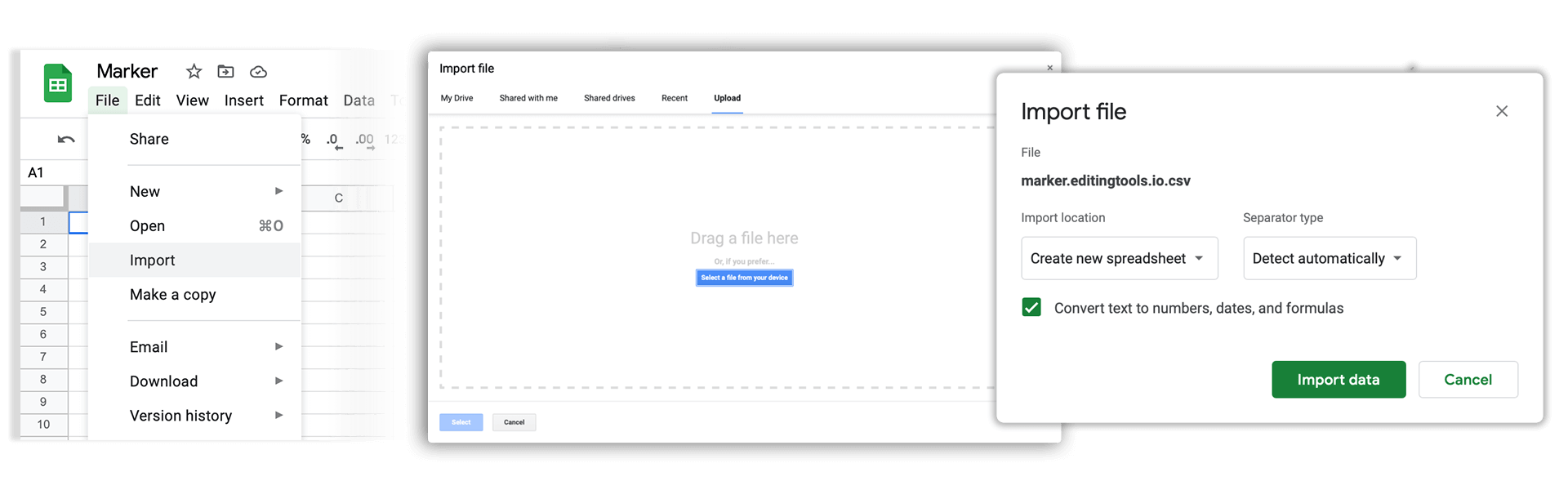
Open Google Sheets and go to "File -> Import". Upload the generated CSV file and press "Import Data" to generate the Sheet with all markers.
🚀 Gata
Deocamdată asta e tot! Dacă tutorialul vi s-a părut util, vă rugăm să-l distribuiți pentru a ne susține. Dacă aveți sugestii despre cum am putea îmbunătăți fluxul de lucru, vă rugăm să ne anunțați!