1. Export a CSV file from Krock.io
To export comments from Krock.io, select the video and open the menu via the three dot icon. Select "Export comments to csv" to export the comments.
2. Use the "Convertor de marcaje" to convert the CSV file into a CSV file
Open the free Convertor de marcaje, select "Krock.io > Comments (.csv)" and set "convert" to "CSV for Google Sheets". Generate and download the file. Dacă aveți probleme la conversia fișierului, puteți contacta asistența gratuită.
3. Import the CSV file into Google Sheets
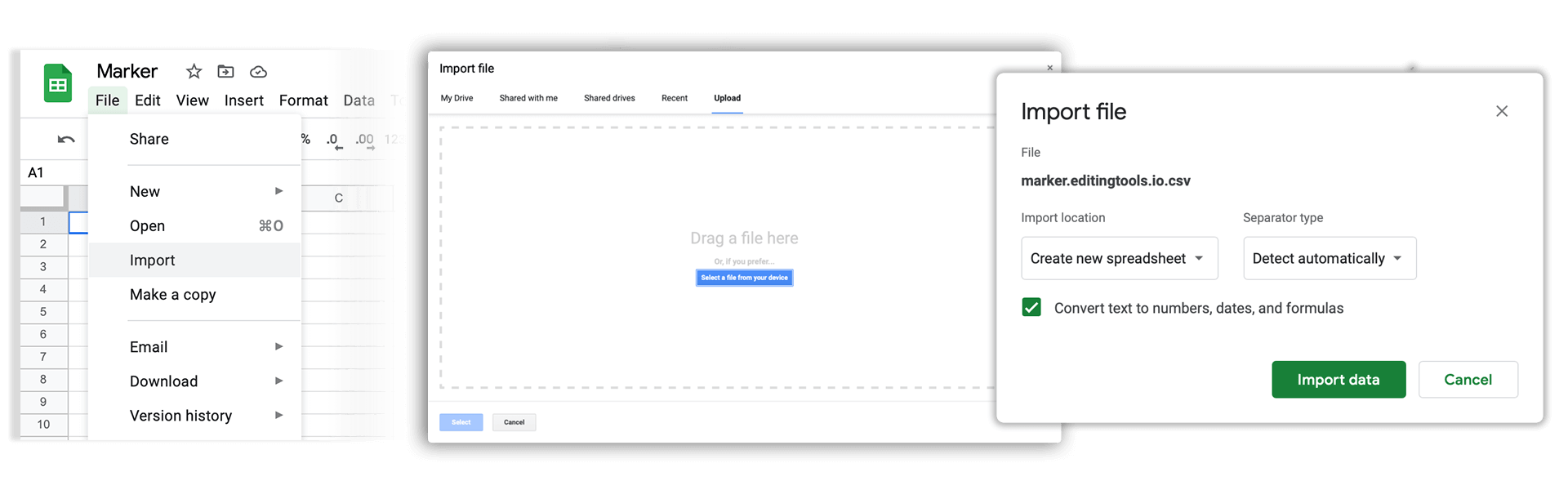
Open Google Sheets and go to "File -> Import". Upload the generated CSV file and press "Import Data" to generate the Sheet with all markers.
🚀 Gata
Deocamdată asta e tot! Dacă tutorialul vi s-a părut util, vă rugăm să-l distribuiți pentru a ne susține. Dacă aveți sugestii despre cum am putea îmbunătăți fluxul de lucru, vă rugăm să ne anunțați!