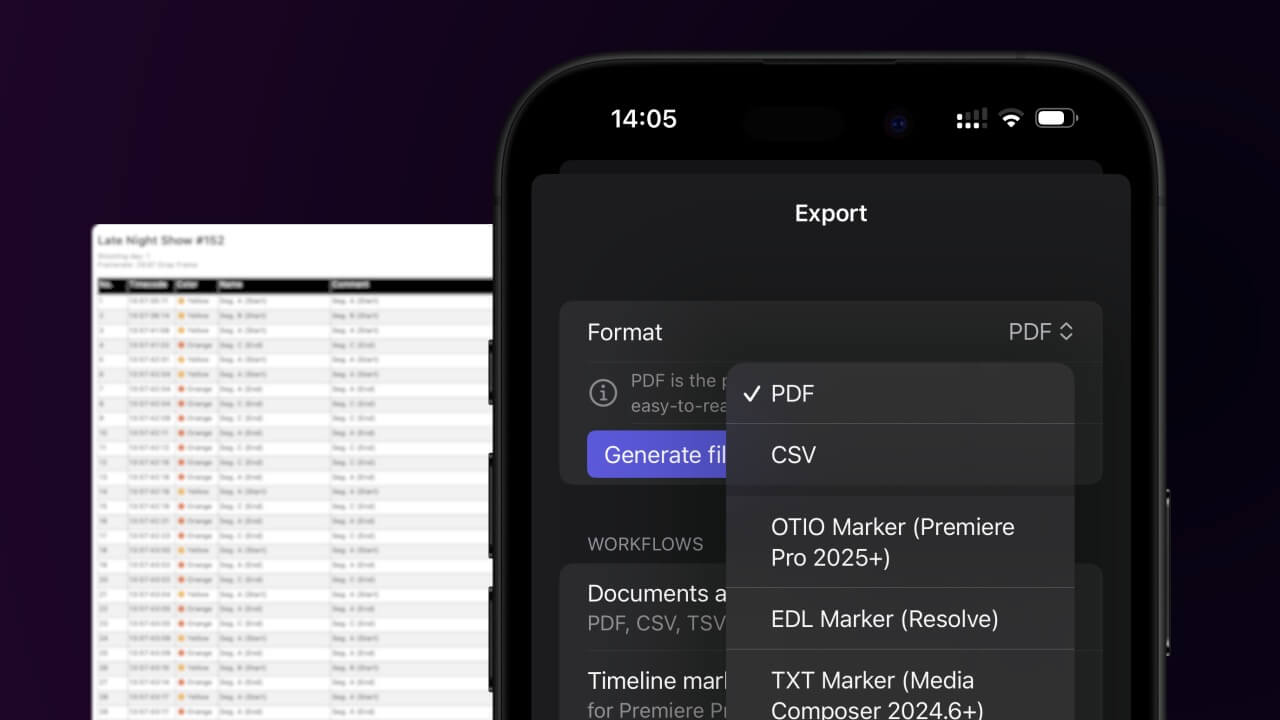
1. Export a CSV file from Live Timecode Notes app
Open the project in the app, then select "Export Notes" from the top menu. Select "CSV". Generate and save the file.
2. Use the "Convertor de marcaje" to convert the CSV file into a ptx marker file
Open the free Convertor de marcaje, select "CSV" and set "convert" to "Pro Tools > PTX File (.ptx)". Generate and download the file. Dacă aveți probleme la conversia fișierului, puteți contacta asistența gratuită.
Ensure that the CSV file contains columns labelled "Timecode In", "Name" and "Comment". Otherwise, it will not work. You can also add columns for 'Colour' and 'Timecode Out'.
🚀 Gata
Deocamdată asta e tot! Dacă tutorialul vi s-a părut util, vă rugăm să-l distribuiți pentru a ne susține. Dacă aveți sugestii despre cum am putea îmbunătăți fluxul de lucru, vă rugăm să ne anunțați!