1. Export a TXT marker file from Live Timecode Notes app
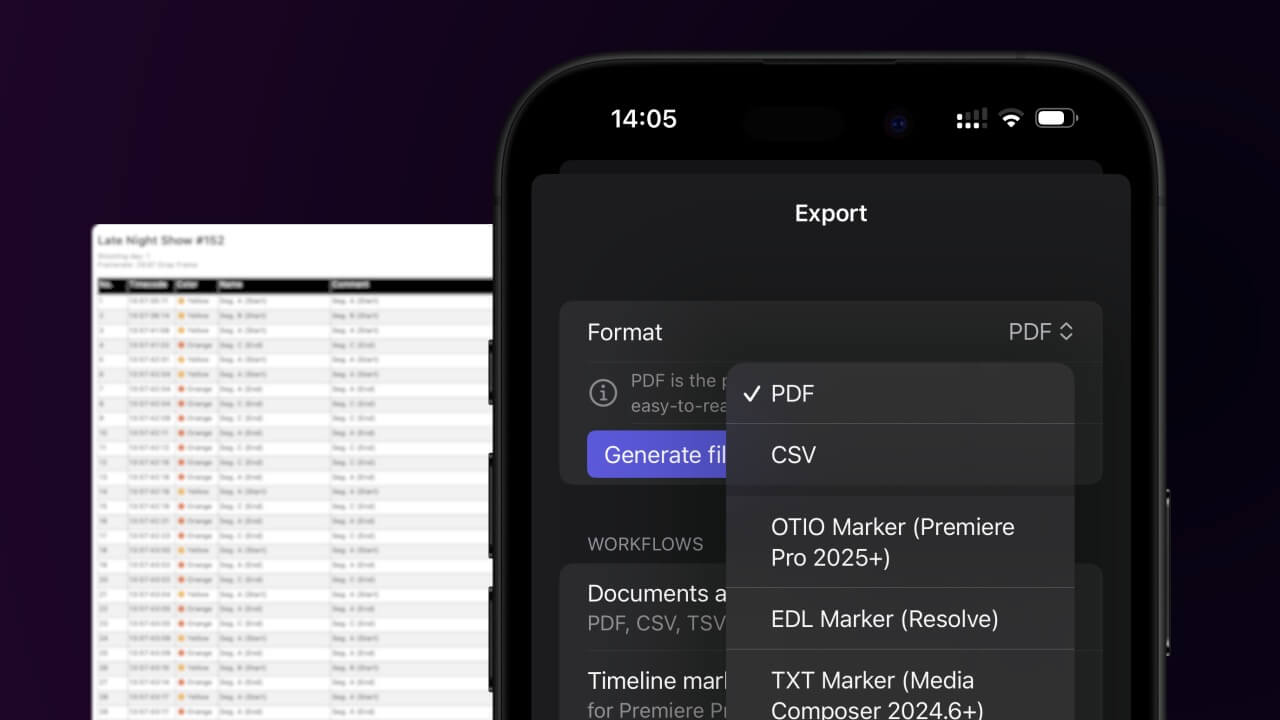
Open the project in the app, then select "Export Notes" from the top menu. Select "TXT Marker (Media Composer 2024.6+)" and activate "Sort by Timecode". Generate and save the marker file.
If you are using an older version of Avid Media Composer, you may need to convert the marker file to an older format. You can use our Marker Converter to do this.
2. Import the TXT marker file into Avid Media Composer
To import timeline markers, go to: "Tools -> Marker". Right Click on "Import Markers". Select the Text file and import.
Avid Media Composer might fail importing markers if they overlap.
🚀 Gata
Deocamdată asta e tot! Dacă tutorialul vi s-a părut util, vă rugăm să-l distribuiți pentru a ne susține. Dacă aveți sugestii despre cum am putea îmbunătăți fluxul de lucru, vă rugăm să ne anunțați!